
Overview
This is the half that watches when you can’t.
It runs the same eight intraday conditions as the dashboard, scores long and short on every bar, and does exactly two things with the result: fires a TradingView alert when a name crosses into a tier, and prints a small tag on the chart so you can see where it happened.
No table, no panel. It’s deliberately quiet — the whole point is that it sits on twenty charts you’re not looking at.
This is one half of a pair. The intraday engine ships as two scripts because TradingView could not carry the alerting engine and the dashboard in a single indicator. This one alerts and tags. Its partner, TQE — Intraday, is the dashboard UI with the full checklist table. Install both; neither is the whole tool on its own.
The tags
When a tier is reached, a tag prints on that bar. It reads grade, side, and count.
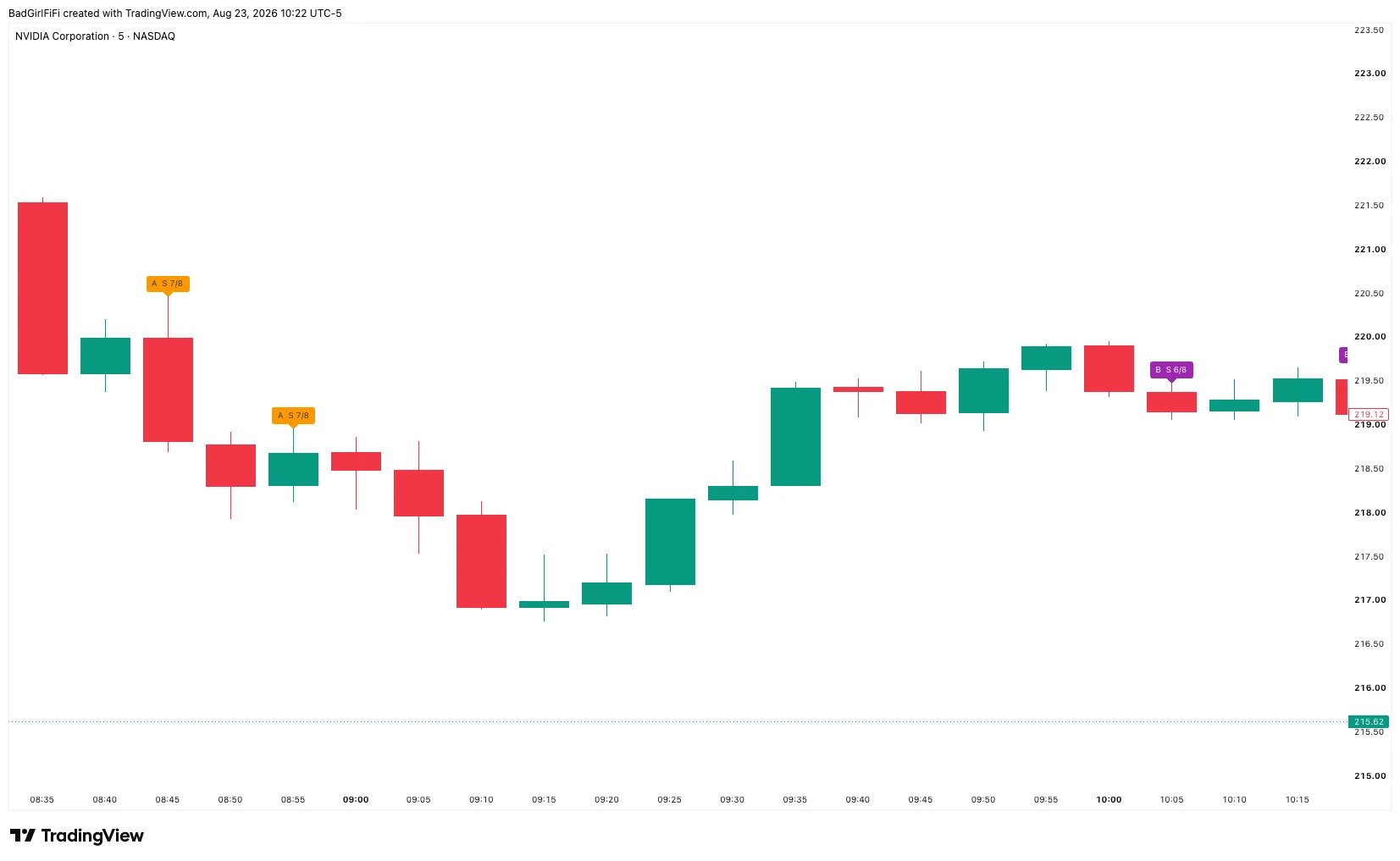
A S 7/8 — grade A, short, seven of eight conditions bearish. B S 6/8 a little later, as the board softened to six.
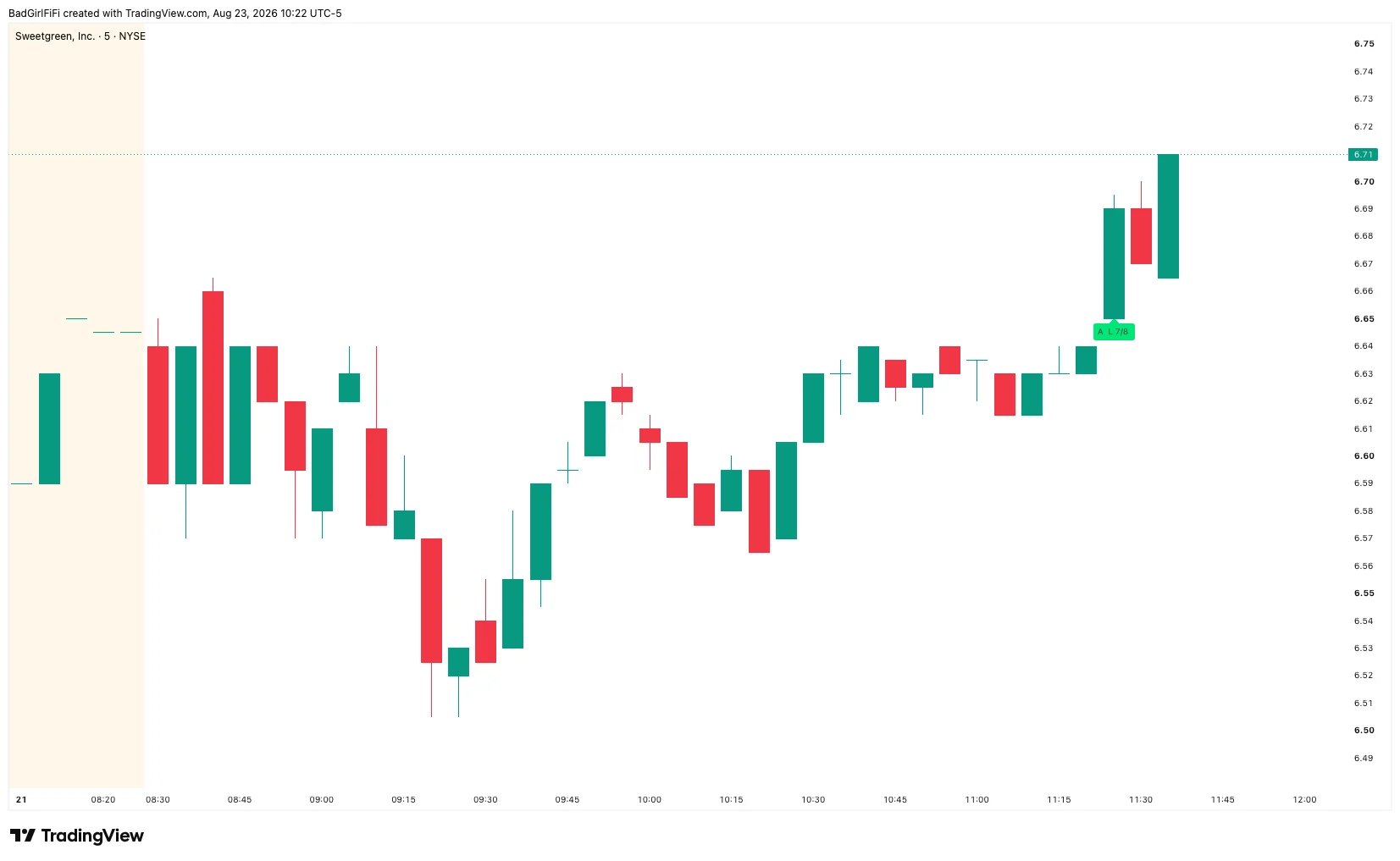
A L 7/8 on the long side, printed at 11:25 — just before the move it was calling.
Read them left to right — grade, then direction, then count:
B |
S |
6/8 |
|---|---|---|
| The tier reached — A+, A or B | The side — L long, S short | How many of your enabled conditions agreed |
So B S 6/8 is a B-grade short with six of eight, and A L 7/8 is an A-grade long with seven of eight. The letter is always the grade; the letter after it is always the direction.
Tags are colour-coded by grade and side, so you can pick the shorts out of a chart without reading the text. They’re on by default and can be switched off if you only want the alerts.
The tags are the audit trail. When an alert fires and you get to the chart four minutes later, the tag tells you exactly where the trigger was and what the count was at the time — rather than leaving you to guess whether you’re looking at the setup or the aftermath.
The conditions
Eight, scored the same way the dashboard scores them:
| # | Condition | What it is |
|---|---|---|
| 1 | Last Week Hi/Lo | Location |
| 2 | Monday Hi/Lo | Location |
| 3 | Previous Day Hi/Lo | Location |
| 4 | PreMarket Hi/Lo | Location |
| 5 | 15m ORB Hi/Lo | Location |
| 6 | 5m 9 EMA | Trend |
| 7 | VWAP | Trend |
| 8 | 15m ORB Break + 1m Retest | Structure confirmation |
The first five are location at five different scales — last week down to the opening fifteen minutes. Six and seven are the trend pair: short-term momentum and where the day’s volume actually traded.
The eighth is the ORB retest, and it’s the one that’s usually missing. A 1-minute close outside the opening range followed by a wick back to it is a specific event, not a state — most of the time it simply hasn’t happened, which is why a strong board commonly reads 7/8 rather than 8/8. Treat the eighth as the bonus rather than the bar.
The don’t-chase gate — how far the move has travelled from the day’s low for longs, or high for shorts — also applies. See the Intraday guide for what each condition is actually testing; this page assumes you’ve read that.
The long-only ATR extension filter is here too. Price too far from the daily 50 SMA and long alerts stop firing regardless of the count. Shorts are unaffected. If longs go quiet and shorts don’t, that’s the first thing to check.
Setting the alerts up
This is the part people get wrong, so it’s worth doing precisely.
- Add the script to any ticker. A 5-minute chart is the recommended default.
- Right-click the chart → Add Alert, or click the ⏰ Alert button in the top toolbar.
- In the Condition dropdown, choose FiFi’s TQE – Intra WL Alerts.
- Pick the specific condition you want from the list underneath.
- Set Trigger to Once Per Bar Close.
- Set Expiration to Open-ended.
- Name it something you’ll recognise in a notification —
FiFi TQE — A+ / A LONG. - Create.
Then check it’s live: ⏰ Alerts in the toolbar, confirm it’s in the list and enabled.
The conditions available
| Condition | When it fires |
|---|---|
| FiFi TQ A+ or A LONG | Either of the two top long tiers — start here |
| FiFi TQ A+ or A SHORT | Same on the short side |
| FiFi TQ A+ LONG / SHORT | Top tier only |
| FiFi TQ A LONG / SHORT | A tier only |
| FiFi TQ B LONG / SHORT | B tier — fires far more often, lower confidence |
Never use “Any alert() function call.” This script publishes named conditions; that generic option is the single most common reason a TQE alert behaves strangely. Always pick a specific FiFi TQ condition from the list.
Three setups
Minimal — recommended. Two alerts per ticker: A+ or A LONG and A+ or A SHORT. High-confidence signals only, no noise. This is the one to start with and most people never move off it.
Active trader. Six per ticker — A+, A and B on both sides. Only worth it if you’re at the desk watching, because B fires a lot.
Watchlist. Apply the script to every name on the list, two combined alerts each, then let the alerts bring you to the chart. You execute on your own plan; the script’s job ends at “look at this.”
The alerts go to Discord
Members get these in the Discord channel as formatted cards, not raw text.
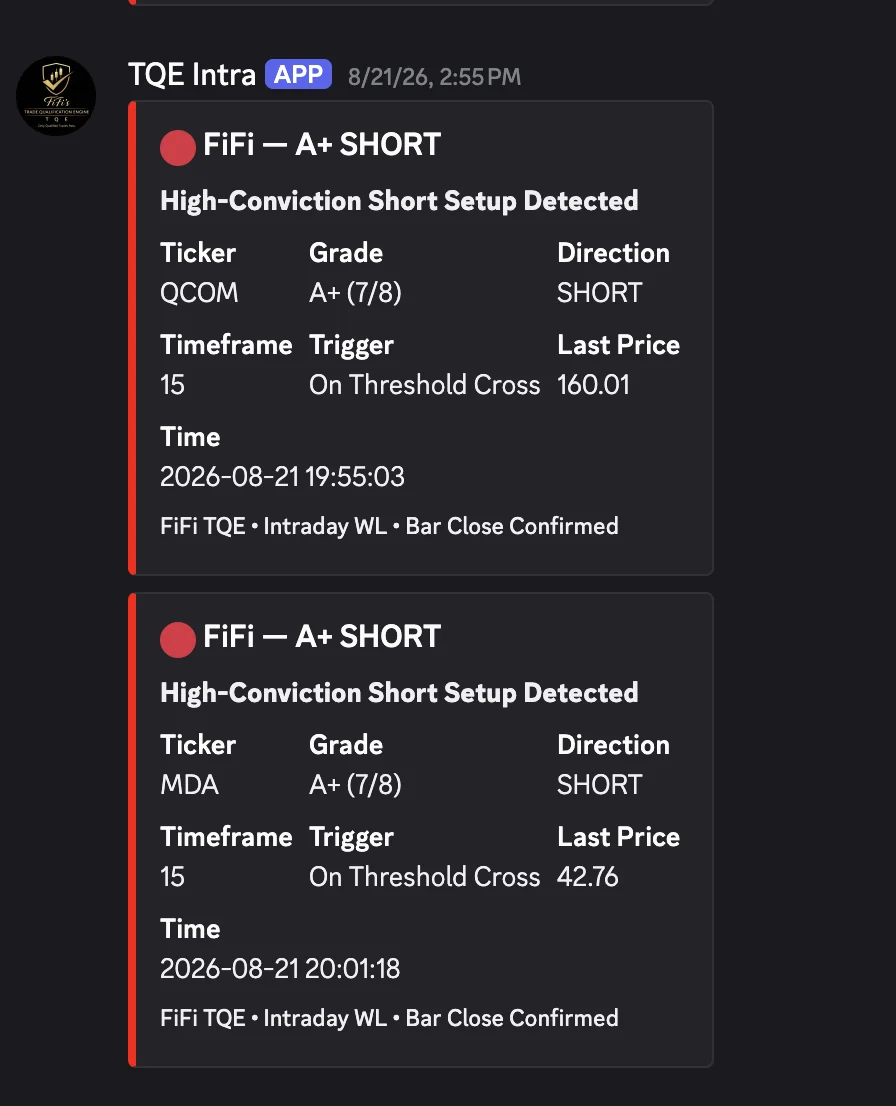 Two A+ shorts inside six minutes — ticker, grade, direction, timeframe, trigger mode, price and timestamp on each.
Every card carries the same thing the tag does plus the context you need to decide whether to open the chart: which ticker, what grade and side, which timeframe it fired on, the price at the time, and confirmation the bar had actually closed. Red for shorts, green for longs — readable from a phone lock screen without opening the app.
That’s the workflow the whole script is built for. You’re not watching thirty charts; you’re getting a card, glancing at it, and deciding whether it’s worth pulling up.
Running your own webhook. Tick Webhook URL in the TradingView alert dialog and paste your Discord webhook link. The message body can be left blank or customised — TradingView posts the payload and Discord renders it.
Trigger mode is the setting that matters
Two options, and the difference is large.
| Mode | Behaviour |
|---|---|
| On Threshold Cross (default) | Fires once, when the count crosses into a tier |
| Every Bar While True | Fires on every bar the condition holds |
Leave it on Threshold Cross. “Every Bar While True” on a name that sits at 7/8 for two hours produces twenty-four alerts telling you the same thing. It exists for automation pipelines that need a repeating state signal; for a human with a phone it’s unusable.
Unlike the dashboard, this script has no cooldown. The dashboard’s alerts are locked to a 15-minute quiet period after each fire. This one isn’t — so a count that oscillates around a threshold can tag and fire more than once in a short window. You can see it happening in the NVIDIA chart above:
A S 7/8, then the short count slipped and recovered, and it tagged again ten minutes later. Not a malfunction, but worth expecting.
Count or percent
Threshold Mode decides how tiers are measured:
- COUNT (default) — a raw number of conditions: 8, 7 and 6 for A+, A and B
- PERCENT — a proportion of whatever you have enabled, rather than a raw count
They behave identically with all eight conditions on. They diverge as soon as you disable some, and percent is the more forgiving of the two. Count is the default because it’s easier to reason about — you can look at a 7/8 tag and know immediately which tier it is.
Set A+ with the eighth condition in mind. Because the ORB retest is an event that most often hasn’t occurred, 7/8 is the realistic top of the range on a strong name — which is why A+ alerts in the members’ feed carry a
(7/8)and not an(8/8). An A+ threshold that insists on all eight is asking for the retest as well as everything else, and will fire far less often than you expect.
Settings worth knowing
| Setting | Default | Why you’d change it |
|---|---|---|
| Alert Trigger Mode | On Threshold Cross | Leave it |
| Threshold Mode | COUNT | Percent if you run with conditions disabled |
| Enable A+ / A / B Alerts | All on | Switching a tier off silences it everywhere |
| A+ / A / B thresholds | 8 / 7 / 6 | Loosening A to 6 is the usual first adjustment |
| Pre-Market session | 04:00–09:30 | Only for a different premarket window |
| RTH Session for PDH/PDL | 09:30–16:00 | Which session defines yesterday’s levels |
| PDH/PDL = Prior Day RTH | On | Leave it — regular-hours levels are what others watch |
| Long ATR Extension Filter | On | Your tolerance for chasing extended longs |
| Use Extended Hours for Daily Data | Off | Changes what the daily ATR and 50 SMA are built from |
| Show A+/A/B Tags | On | Off if you want alerts with no chart marks |
| Show Key Levels (Light) | Off | Draws the levels it’s scoring against |
Turn on Extended Hours in your chart settings, separately from all of this — the premarket condition needs it.
Why “Watchlist”
The script requests data for several higher timeframes at once — last week, Monday, the prior day, the daily ATR. Doing that while you arrow through a watchlist used to be where this kind of indicator broke.
This build uses TradingView’s dynamic request handling, which is what lets it recalculate cleanly as the symbol changes. You can flip through thirty names and the tags stay correct on each. That’s the difference between this and running the dashboard on every chart.
Common mistakes
Using “Any alert() function call.” Always pick a specific FiFi TQ condition.
Using “Once Per Bar” instead of “Once Per Bar Close.” Mid-candle alerts fire on counts that haven’t settled and may not survive the close.
Expecting alerts with conditions disabled. If you’ve turned off three conditions and left the A+ threshold at 8, nothing can ever reach it. Check your enabled count against your thresholds.
Changing settings and expecting old behaviour. Alerts evaluate against the script’s current settings. Edit the thresholds or toggles and every alert on that chart changes with them — including ones you set up weeks ago.
FAQ
Nothing is firing.
Four checks, in order: the alert is enabled, the script is actually on the chart, your enabled condition count can reach your threshold, and price genuinely met it.
Longs aren't firing but shorts are.
The ATR extension filter is blocking longs. It’s long-only and deliberate.
It fired twice within a few minutes.
There’s no cooldown in this script. A count that dips below a threshold and comes back will fire again.
Do I need the dashboard too?
For alerts, no — this one is self-contained. But when an alert brings you to a chart, the dashboard is what tells you which conditions were the seven and which was the one, and that’s usually the deciding information.
Which timeframe?
5-minute is the recommended default. 15-minute if you want fewer, slower signals across a large watchlist.
Can I send these to Discord?
Yes — tick Webhook URL in the alert dialog and paste your webhook. The message body can be left as-is or customised.
Does it work on futures or crypto?
It’s built around a regular-hours equity session — premarket, the open, the prior day’s RTH range. On instruments without those boundaries most of the conditions stop meaning anything.
Walkthrough
Where this fits
Every indicator in the engine is documented to the same standard.